PaperStart
A paper on urban heat
Street-level shade lowers perceived temperature by 3 to 6 degrees on summer afternoons.
Versioned source
↳ THE DOCUMENTATION
A complete walkthrough of Synatrail, following one investigation from a hunch to a shared, testable connection.
Every chapter names the exact buttons, panels and fields you will see, and shows them in use on a running example: could cooler streets support local cafés? The same example ships inside the harness, so you can follow along on a real canvas.
Synatrail is a research harness for choosing a problem worth pursuing. You bring questions, papers, datasets, data connections and half-formed ideas, lay them out, connect them, and ask a model through your chosen intelligence source to investigate a scope you choose. A promising interpretation becomes a small, honest test.
On your first visit, the guided tour points out the project, cards, connections, model access and notebook. You can close it and restart it from Help (?). The working canvas stays available while you learn.
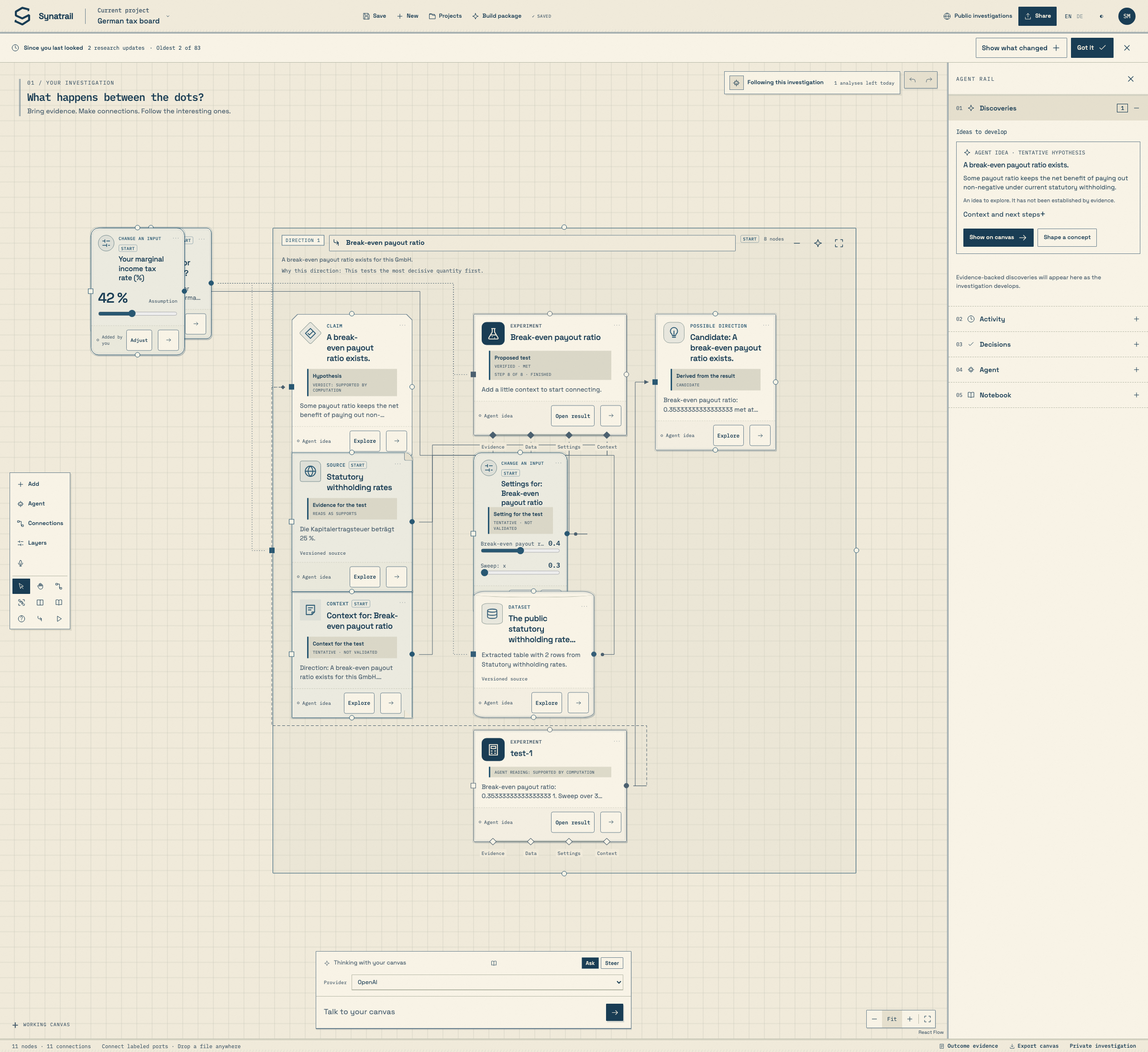
The investigation opens on one working canvas. Add your question and evidence there. Once the agent is watching, its developing hypotheses, directions, tests and results also become visible on that canvas, with their agent origin and tentative status shown on each card. The agent keeps its own map in the background; you decide what to explore, ignore, edit or accept as your own judgment. A computed verdict does not set your verdict.
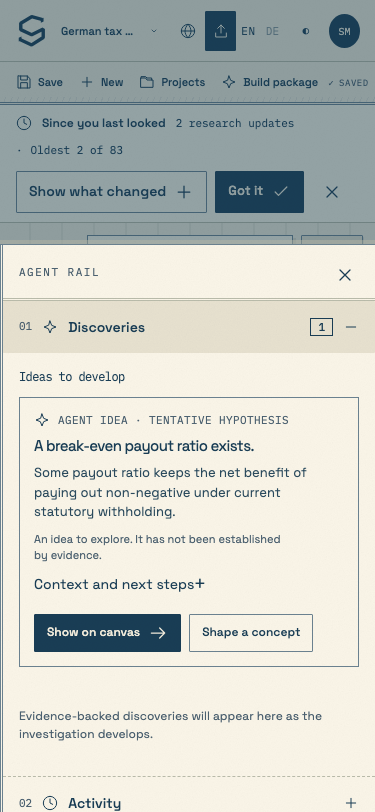
The Agent button opens the rail for discoveries, activity, decisions, automation and the notebook. The presence control above the canvas reads Following this investigation while the watch is active. The assistant at the bottom has separate Ask and Steer modes.
Chapter 17 has the full glossary.
The harness lives at synatrail.com/app/. Registration is open: anyone who completes the form gets an account at once, with no approval step. Your investigations are private until you choose what to share, and the Terms of Use and Privacy Notice say exactly what is stored and why.
Use Create an account on the project page. The form is titled Join the investigation and asks for your Email, a Password of at least twelve characters and Your name; then, optionally, Organisation, Role and What do you want to investigate?, whose placeholder reads A question, a domain, or what brought you here. Tick I accept the Terms of Use and Privacy Notice and finish with Create account →. Your harness opens right away.
The sign-in form is titled Enter the workbench. Enter your email and password and press Sign in →. Password recovery goes through the administrator.
Inside, press Current project, expand More in this project and choose Open an illustrative example. The project is called Illustrative example · Cooler streets. Every node in it is marked Illustrative · unverified, and every edge says Illustrative connection. Replace with a cited rationale. This documentation tells the same story with real steps.
Main actions have the displayed credit fees described in chapter 17. With BYOM, your model provider bills usage through your key or plan. When qualified Synatrail-managed intelligence is available, its model usage is charged in the same platform credits at the displayed price based on actual tokens. Nothing reaches a model until you choose a source and consent in chapter 07. Browsing and working on your board remain free.
A project is one investigation: its working canvas, sources, notebook, experiments and research history. The header holds everything you need to manage projects.
Current project opens the panel Project details. It holds the two things a project needs: Project name and The question you are following. Press Save project to store them. Changing an existing question substantively shows Why the reframe? (optional); saving then records a Reframe entry in the notebook with the former and new wording, and the notebook entry opens project details. Canvas changes save on their own, and the strip at the top says so: Canvas changes save automatically. Under FROM INVESTIGATION TO BUILD sit Create a build package and Idea library, both explained in chapter 14. The More in this project disclosure links to All investigations, folders & Trash, Branches & comparisons, Sources & experiments, Community and Open an illustrative example.
Projects in the header opens a full-screen library titled Investigations. Its sidebar has All investigations, Unfiled, Idea library, a FOLDERS list with a New folder button, and Trash, each with a count. Above the list: New investigation, a search field, Search names or questions, a sort, Recently updated or Name A–Z, and a refresh button. Each card shows a drawn preview of the canvas, the title, a ✓ Current badge on the open project, its question, its folder, the node count and the last change, with Open, Rename, Move (to a folder or back to Unfiled) and Delete. Deleting asks Move to Trash? and warns that active research will stop and the public snapshot will be withdrawn; Restore in Trash brings the investigation back, still private and with research stopped. Folders offer Rename folder and Delete folder, which moves their investigations to Unfiled. Esc or Back to canvas closes the library.
New projects are named Untitled project, then Untitled project 2, and so on, until you rename them. You cannot switch projects while edits are waiting to be saved. The message reads Save or resolve this investigation's pending edits before switching.
Export canvas in the status bar downloads the investigation canvas and your notes as a JSON file. Export workspace, in Settings under Account, exports everything you own. These files are records for you. There is no importer for them. Evidence enters the harness through uploads, links and data connections.
A node is one card on the canvas. Anything you know, suspect or want to test becomes a node. There are four ways to add one, and one panel that shapes it.
The first three open the Start with a piece of something. menu:
| Entry | What the menu says | What it creates |
|---|---|---|
| Drop a document | PDF, text, spreadsheet or image · up to 25 MB | A file picker. The upload becomes a source node while extraction runs. |
| Connect an API | A data source with its own connection | A Data connection node and the connector panel of chapter 05. |
| Set a starting point | A doubt, a curiosity or a thread to pursue | A Starting point node titled What are you curious about? |
| Add context | An observation, constraint or rough idea | A Context node titled A piece of context. |
| Add a dataset | Describe a dataset or setup manifest and connect it | A Dataset card, ready to name and edit. |
| Record an observation | Keep a finding, event or staff record | An Observation card for your own notes. |
| Add an interpretation | Explain what the evidence means or what needs review | An Interpretation card for your reading of the evidence. |
| Bring a link | A page, paper or source to investigate | A Source node titled A source worth exploring. |
| Try a parameter | Change an input and compare what happens | A Change an input node titled Change an assumption, value 28 in a 0 to 100 range. |
| Capture an idea | A possibility worth testing | A Possible direction node titled A possible direction. |
| Create an experiment | Run a defined operation on your evidence | An Experiment node titled A test worth running. Chapter 11. |
| Group evidence | Name a shared question and the sources behind it | A Research group frame titled A research frame. Chapter 06. |
On ordinary cards, Explore opens the assistant for that card. The separate arrow button, Choose next step, opens the next-step choices.
The menu ends with a link to Source catalog & saved work, the panel called Bring in what you already know., where the field Find saved evidence searches sources, notes and tests already in this project and marks those that are on canvas.
The icon, outline and label identify a card’s role: folded documents for sources, a cylinder for datasets, a compact control for parameters, a flask for experiments and a chart for results. Some kinds are created by you, some by the agent, some by experiments.
Any kind of card can begin a flow. A card with no incoming connections, including one standing on its own, is shown in amber with a Start badge. It keeps its round output and any named inputs underneath, but has no left input at rest. Start is a position in the graph, separate from the Starting point kind. Once a connection enters any input, the badge and amber styling disappear and the normal left input remains visible; removing the last incoming connection makes it a start again.
| Card label | Used for | Usually created by |
|---|---|---|
| Starting point | The doubt, curiosity or thread that begins the investigation, or a sub-question along the way. | You |
| Paperalso Study · Patent | Published work, with attribution and rights notes. | You, or the agent when it proposes a reading |
| Source | A web page or other public source to read. | You, by link, or the agent |
| Dataset | A CSV or JSON upload with immutable versions. | Uploads |
| Data connection | A bounded API read with its own credentials. | You |
| Contextalso Observation | An observation, a constraint, a rough note. | You, or pasted text |
| Interpretationalso Claim | A reading of the evidence, stated as a claim. | You, or the agent |
| Possible direction | An idea worth a test. | You, or the agent |
| Answer | A saved assistant answer with its evidence references. | Saved from a conversation, chapter 08 |
| Change an input | A parameter: a value, a unit and a range you can slide. | You |
| Experiment | One of the nine numerical tools with pinned inputs. | You, chapter 11 |
| Computed result | The output of a run, with its calculation receipt. | The computation worker |
| Research group | A frame around related nodes with a shared purpose. | You, chapter 06 |
Press Enter on a focused card, double-click it, or use its Open button to open the node panel, titled A piece of the investigation. Its fields:
Save on canvas stores the card, with the toast Node saved. On a starting point, Capture what prompted this adds a context card and a raises question connection in one undoable edit. On an existing capture card, This prompted my question adds that relationship only when you choose it; ordinary paste, drop and add gestures leave the card unconnected. Explore this sends the node to the assistant with the question What is worth investigating about this node? Propose the sub-questions, the evidence to gather and the next steps as cards. The trash button, Delete node, removes it. Undo brings it back. A locked card first asks you to unlock it.
Parameter cards show their value and unit under the word Assumption, with a slider you can drag on the card itself. Source cards add Open original source, View uploaded original and the extraction tools of chapter 05.
Connections are where the harness earns its keep. Every edge has a type, a rationale and an assessment. None of them is proof. The edge panel says so in its footer: A connection is not proof of causation.
Cards with incoming connections usually have two ports. A Claim has four, adding Supports and Challenges; an Answer adds Evidence and Context; a Computed result adds Settings and Context. An Experiment with an incoming connection has six: the two side ports and four diamonds underneath, Evidence, Data, Settings and Context. Named inputs accept matching kinds: Settings takes parameters; Data takes datasets, data connections, observations or computed results. Connecting a named input sets the relationship, such as supports, contradicts or informs. A filled port shows that it has a connection. A start hides only the left input, so it shows one port on a basic card, three on a claim, answer or result, and five on an experiment. All named inputs stay available; the left input reappears temporarily while you connect.
Connecting two cards that are already connected opens their existing edge instead, with the note These nodes are already connected. Refine their relationship here.
Its overline reads A RELATIONSHIP IS A HYPOTHESIS and its title What connects these? Eight quick chips sit at the top: related, informs, supports, contradicts, analogy, depends on, feeds input and joins on. The Relationship dropdown holds all twenty-three types.
| Family | Types | Use it when |
|---|---|---|
| Evidence | supports · contradicts · qualifies · informs · related | One node bears on another's credibility, or simply belongs nearby. |
| Reasoning | raises question · could explain · predicts · similar mechanism · different application · analogy | You are stating how one thing might account for, or resemble, another. |
| Structure | depends on · requires · enables · limits · located within · aligned in time | Constraints, prerequisites and shared place or time. |
| Data | joins on · candidate join · feeds input · transforms · aggregates · evaluates | Datasets, parameters and experiments passing values to each other. |
Use Text on the connection to add up to 240 characters below a relationship’s type on the canvas. Save it with Save relationship. Clear the field to remove the annotation; the relationship type and its rationale stay separate.
Below the type, the field Why do you think they connect? takes up to 2,000 characters of rationale. Assessment is one of unassessed, tentative, supported or refuted. Reverse direction swaps the arrow. Save relationship stores it.
Two buttons hand the edge to the assistant, once a model is connected in chapter 07: Interpret asks what the connection could mean and Challenge asks What evidence would contradict it?. A third, Make testable, is yours alone: it opens a test plan on its own Experiment card, carrying this relationship and the revision it has right now. The footer states who made the edge: Human interpretation or Agent proposal. Edges the agent proposed can carry a Supporting evidence disclosure.
One connection is guarded. Connecting a parameter to an experiment whose input expects a different unit fails with This experiment expects …; the parameter uses …. Set compatible units first.
Files, links and live data connections all become nodes. The harness keeps every original exactly as it arrived, extracts what it can read, records how much it covered, and lets you correct the result without losing any version.
Drag files anywhere over the canvas. The overlay reads Drop it into the investigation. with the limit UP TO 10 FILES · 25 MB EACH. The same limits apply to the file picker and to pasted files. Each file becomes a card whose body reads Original received. Preparing extraction…, then extracting…, then understanding… if a model is connected. If something fails the card says Needs attention · open to retry.
| Format | What is extracted | Limits |
|---|---|---|
| Text · Markdown | The text, split into passages. | 25 MB per file |
| CSV · JSON | Rows and columns. The upload also becomes an immutable dataset version that experiments can use. | 2 MB, 5,000 rows, 50 columns per dataset version |
| The text layer, page by page. Scanned pages fall back to English OCR. | 250 native text pages, 8 OCR pages, 45 seconds in total | |
| DOCX | Paragraph text. | Bounded document parsing |
| XLSX | Cell values as they were last calculated. Formulas are not executed. | 20 sheets, 5,000 rows per sheet |
| PNG · JPEG | Metadata only. Reading the picture needs a connected vision-capable model and consent. | 4 MB, 4,096 pixels per side, 8 megapixels, static images only |
Anything else is preserved but not read: This original is preserved, but its format requires a text or supported document export.
Open a source card. The disclosure Source text & reading coverage starts with a coverage line such as 12 of 30 pages extracted · 3 read with OCR · Review coverage, or 48,120 characters extracted · Complete extraction. Passages are labelled Page 4, Paragraph 12 or Passage 3 so a citation can point back to them.
OCR results come with honest warnings: reading order is approximate, numbers and tables need review before computation, and a confidence score is a recognition score rather than a probability of being right. Pages with low confidence are listed by number.
To fix an extraction, open Correct the extracted text, edit Corrected source text and press Save a correction. The toast reads Correction saved as a new extraction revision. Nothing is overwritten. Extraction versions (N) lists every revision, and human corrections are marked as such. If the source has been re-extracted since you started editing, the panel asks you to compare before saving.
Two more buttons: Retry extraction runs the reader again, and Choose the original again replaces the file. Understand this source asks your connected model to summarise it into Extracted facts; the toast reads Source understanding queued.
Paste a web address on the canvas, or use Bring a link. The card is titled A source worth exploring and reads Reading this source… while the server fetches it. Public reads are bounded to 2 MB and 25 seconds. A server without web reading says so: Web reading is unavailable on this server. Add an excerpt or upload an export.
A data connection is a bounded GET request that uses the source's own credentials and turns each response into a dataset version. Its panel is called Connect it where you use it. and has four sections.
| Section | Fields | Notes |
|---|---|---|
| Request | Service name · Endpoint · Documentation · Authentication (No authentication, Bearer token, Named header key) · Header name · Data-source key · GET parameters | Parameters are typed string, number or boolean. The key is encrypted on the server and never shown again; the field later reads Replace source key (leave blank to keep). |
| Read policy | Refresh cadence (Manual reads, Every 15 minutes, Hourly, Every 6 hours, Daily, Weekly) · Reads per day (max) · Pagination (Single call, Page number, Row offset, Cursor from response) · Calls per read (max) · Rows per call · parameter names | Reads per day is 1 to 96, default 24. Calls per read is 1 to 25. Every read stops at 2 MB or 5,000 rows. The footer counts Reads in the last 24 hours. |
| Extraction | Row path (optional) · Columns to keep · Keep only rows matching a rule | Rule operators: equals, is not, contains, greater than, less than, is not empty. |
| Role on the canvas | What is this data for in the investigation? · Observe rows · Compute on it · Compare versions | The purpose is read by the agent as your intent, never as evidence. With no uses ticked, the agent only learns that the connection exists. |
Save connection stores the settings. Connect & test performs one real read and reports Read completed in 1 call(s). A versioned sample is ready., or explains why it stopped early: call budget, row limit or size limit. The Retrieved sample shows the first twelve rows. Disconnect removes the credentials; earlier samples remain.
Source keys live apart from model keys. Both are encrypted at rest. Publishing an investigation never includes original files, connection settings or credentials, and a model only sees a data connection's rows when you tick Observe rows or Compute on it.
The canvas has a tool rail, a zoom control, an undo control, a selection toolbar that appears when something is selected, and a status bar. All of them float over the canvas, and the help panel behind ? repeats what follows.
| Tool | Key | What it does |
|---|---|---|
| Select and move | V | The default. Click selects, drag moves. Shift + click adds to the selection; Shift + drag draws a selection box. |
| Pan canvas | H | Drag anywhere to move the view. Holding Space pans temporarily in any tool. |
| Connect nodes | C | Choose two square handles to connect them. The status bar reads Choose two square handles · Escape to cancel. |
| Group nodes | G | Drag a selection box around cards, or tap them, to make a research group. |
| Add source or node | + | Opens the add menu of chapter 03. |
| Select loose pieces | Selects ungrouped, unconnected My-canvas cards that are ready for review; pending source placeholders stay out. | |
| Ask about selection | Sends the current selection to the assistant. | |
| Agent | Opens the agent rail of chapter 09. | |
| Open notebook | Opens the notebook drawer of chapter 10. | |
| Canvas shortcuts | ? | Opens the help panel, Find your way around. |
The zoom control offers Zoom out, Fit, Zoom in and Toggle minimap. Zoom runs from 15 to 200 percent; below 40 percent, cards switch to a low-detail overview so a large canvas stays legible. F fits everything into view.
| Keys | Action |
|---|---|
| ⌘ / Ctrl + S | Save the project, even while typing in a field. |
| ⌘ / Ctrl + Z · + Shift | Undo · redo. |
| Esc | Close the open panel, cancel a connection, return to Select. |
| Enter | Inspect the focused card. In the Group tool, Space toggles its selection. |
| Arrow keys · Shift + arrows | Move the focused card 5 pixels · 20 pixels. |
| Backspace · Delete | Delete the selected cards and edges. Locked cards stay until you unlock them; Undo restores a completed deletion. |
| Double-click | On a card: inspect. On empty canvas: add. |
| Paste | A web address becomes a source, text becomes context, files upload. |
Select one or more cards and a toolbar named Actions for the selection appears. It counts the selection, then offers Next step, Find connections, Ask, more actions and Clear selection. Under more actions are Group, Trace, Compare alternatives, Connect and other actions that fit the selection. Drag its grip to move it; arrow keys nudge it and Home resets it.
The … button also leads to All actions for the selection:
Relationship labels stay quiet until you hover or select. Selecting a card fades unrelated cards and wires; click empty paper to clear the focus. Each card initially shows only its strongest few wires, with +N more for the rest. Open Layers to choose stages, focus a direction or Show only a group. Under Relationships & details, Show relationship labels and Show all wires reveal the full graph. These settings change the view, not the saved investigation.
Open a card and press Trace the reasoning to follow its numbered chain and the explanation for each step. Group connectors count bundled relationships; opening one shows the underlying links. A research direction places its hypothesis, test and result in readable rows, with supporting evidence and settings wired into the test.
A group is a frame with a name and a purpose. The assistant receives the group's meaning together with the evidence inside it, so asking about a group is different from asking about its members one by one. Press G and a guide appears: Group connected evidence, Drag around nodes, or tap nodes to select them., and a live count such as 3 selected. Press Create group.
The group's own panel, Give this group a purpose., holds Group name and What connects this group?, with the placeholder A shared question, hypothesis, theme, or reason these sources belong together…. Save group stores it. Ask this group sends the group, its nested groups and its sources to the assistant. The In this group list lets you remove members, Add selected (N) adds the current selection, and Choose nodes on canvas returns to the canvas to pick more. Ungroup removes only the frame: Keeps every node and its connections. Undo restores the group.
The floating undo control and ⌘ / Ctrl + Z step back through canvas edits: moves, additions, deletions, connections, group changes. Undo is aware of revisions, so it never discards an update that arrived later from a source reader or the computation worker. What it cannot undo, the help panel says plainly: Completed research actions and provider charges remain in history.
The status bar at the bottom reads 5 nodes · 4 connections, then a hint that follows the active tool, then Export canvas, then the visibility of this project: Private investigation, Private working copy or Public snapshot.
Everything so far ran without a model. Source understanding, the assistant, research and vision need a ready source. Choose BYOM with your own provider account, or a qualified Synatrail-managed route where offered. You decide what it may process and accept a spending limit.
Press your avatar, Profile and settings, and open Model access. Choose an intelligence source and give processing consent. BYOM offers your personal provider connections; managed mode lists only qualified routes and asks for no personal API key or USD provider allowance. If managed routes are unavailable, the panel says so and does not send work through BYOM instead. BYOM offers these providers:
| Provider button | How you connect | Default model |
|---|---|---|
| OpenAI | API key | gpt-5-mini |
| Claude API | API key | claude-sonnet-4-6 |
| Gemini API | API key | gemini-2.5-flash |
| Claude Code · Pro / Max | Browser sign-in with your Claude subscription | Account default, or Haiku, Sonnet, Opus |
Connected providers show Connected. A personal Codex route also appears, marked unavailable until its isolated integration is verified.
Choose a provider and fill in API key, Model and Default research allowance (USD). The allowance is a ceiling for autonomous work, between 0.10 and 100 dollars, ten by default. Then tick the consent line, which is required: Allow this model to understand sources I add to this workspace, within my research allowance. Press Connect & activate. The form validates the key without starting research, and the toast reads Model access saved. Your canvas remains available. Keys are encrypted on the server and never shown again. Remove key deletes one.
Autonomous research needs two things a model may or may not offer: structured tool calling and a cited public search. The Research capabilities disclosure runs both, for real and billed, within Maximum allowance for the capability check (USD), five dollars by default. Press Check tools & search. The toast reads Research capability check completed. Until you run it, the panel says Run the capability check before activating autonomous research.
Choose Claude Code · Pro / Max. The panel explains that your Claude plan will handle ideas, source understanding and research, then states the consent: By choosing Connect Claude, you select Claude for this workspace and allow it to process sources you add, generate ideas and research your approved public queries. Press Connect Claude, then Sign in on Claude ↗ and approve access with your own account. If Claude gives you a code instead, open Claude gave me a one-time code, paste it into Code from Claude and press Finish connecting. The status strip moves from Waiting for Claude sign-in to Claude connected. Your sign-in stays in a private hosted session for your next visit. Disconnect Claude ends it.
On a server where hosted sign-in is not enabled, the panel says Browser sign-in has not been enabled on this server yet.
For an explicit question, Answer with chooses the connection that answers; unconnected models say · Connect first. For the standing agent watch, a paired Claude Code connection can be verified yet offline. If it goes offline and you also have a verified API connection, background passes can use the lowest-cost verified API model until Claude Code returns; the rail names that fallback and charges it against the saved daily budget.
The Research context tab has two long fields, What are you trying to understand? and How should a model work with you?, up to 12,000 characters each. They accompany every question and mandate. Save research context stores them.
With BYOM, model usage remains on your provider account and autonomous work stays within its USD allowance or subscription limits. With Synatrail-managed intelligence, actual reported model tokens use the same platform credit balance as unchanged main-action fees, at the displayed model price based on actual tokens. Before work starts, a quote separates the action fee, first-call ceiling and one total run limit. Later calls reserve only what they need. Unknown usage remains a pending hold until reconciled; a quote is not a guaranteed final debit. Revoking consent pauses undispatched work, while already sent calls retain their original charge.
The assistant dock at the bottom of the canvas answers questions about whatever you have selected: a card, a relationship, a group, or the whole canvas. Every answer cites the evidence it used, at the revision it saw.
Its first line tells you the scope: Thinking with your canvas, Thinking with "A paper on urban heat", Thinking with 2 selected nodes or Thinking with the selected relationship. Next to it, Ask sends a scoped question, Steer tells the agent what to focus on within its saved limits, and Answer with chooses the model for a direct answer.
The text field reads Talk to your canvas. Enter sends, Shift + Enter starts a new line. The book button on the first line opens the conversation history.
Without a model, sending shows Connect a model and enable source processing in Model access to start research. and opens the settings for you. With one, the toast reads Question saved. The assistant is working with this scope.
Answers arrive in Think with the evidence. Messages are marked YOU and RESEARCH ASSISTANT. While the model works, a progress block titled Working with your evidence carries a LIVE badge, the latest status, and a disclosure Activity and model summaries that lists each tool call and summary. Text streams in under ANSWER IN PROGRESS.
A finished answer ends with three things. A disclosure counting its evidence references, each pointing to a card and revision. A disclosure called Limits and open questions. And a provenance line such as Selected model: OpenAI · gpt-5-mini. A Claude subscription run that cannot confirm which model actually replied is marked Actual model unverified.
Continue with Continue with this evidence and Ask a follow-up. If a run stops early the panel says so, The answer is paused. or This run finished without an answer., and offers Try question again, which retries with the original model and evidence, and View this run.
An answer also proposes the evidence and sub-questions it calls for, as dashed cards on the canvas you asked from, marked Proposed · approve or reject. Their panel explains: The research assistant proposed this card alongside an answer. Approve it to make it yours, reject it to remove it, or reconnect it first. A proposed source, paper, study or dataset must carry a public address; the server checks the link before saving, and a card whose link could not be verified says so. For those cards the footer button on My canvas reads Approve & read: approving also fetches the address as an ordinary source, with its extraction and coverage, so a proposal becomes evidence only once it has actually been read.
Every answer offers Add answer to canvas and Keep in notebook. The first creates an Answer card titled Model answer · review the evidence on the canvas you asked from, beside the cards you selected and connected to the evidence it cites. Open it and you see where it is saved, its Limitations and Evidence used, and the button Ask a follow-up; an answer asked on Agent canvas also offers Keep on My canvas. If the cited evidence changes later, the card warns: Evidence has changed since this answer. Review its original sources before relying on it.
The edge panel's Interpret and Challenge buttons, the card footer's Explore, the group panel's Ask this group and the selection toolbar's Ask and Ideas all lead here. Make testable does not: it opens a test plan instead, in chapter 11.
The agent can follow your investigation in the background. It looks for useful connections, develops directions and tests them within the level and daily budget you save. Its cards appear on the working canvas, where you can inspect the evidence and make your own decisions.
Open Agent in the left command bar. The rail shows Discoveries, Activity, Decisions, Agent and Notebook. Under Agent, choose an automation level and daily budget, save them, then press Start the agent. The presence control reports Following this investigation and the analyses remaining today. Pause, Analyse now and Stop are available in the same rail; Stop asks you to confirm and leaves the map intact.
Manual acts when asked. Suggest keeps thinking and proposes next steps. Research can investigate and run private tests. Full auto can run supported, configured actions within the daily budget. The rail shows which abilities are available at the saved level and why an ability is unavailable.
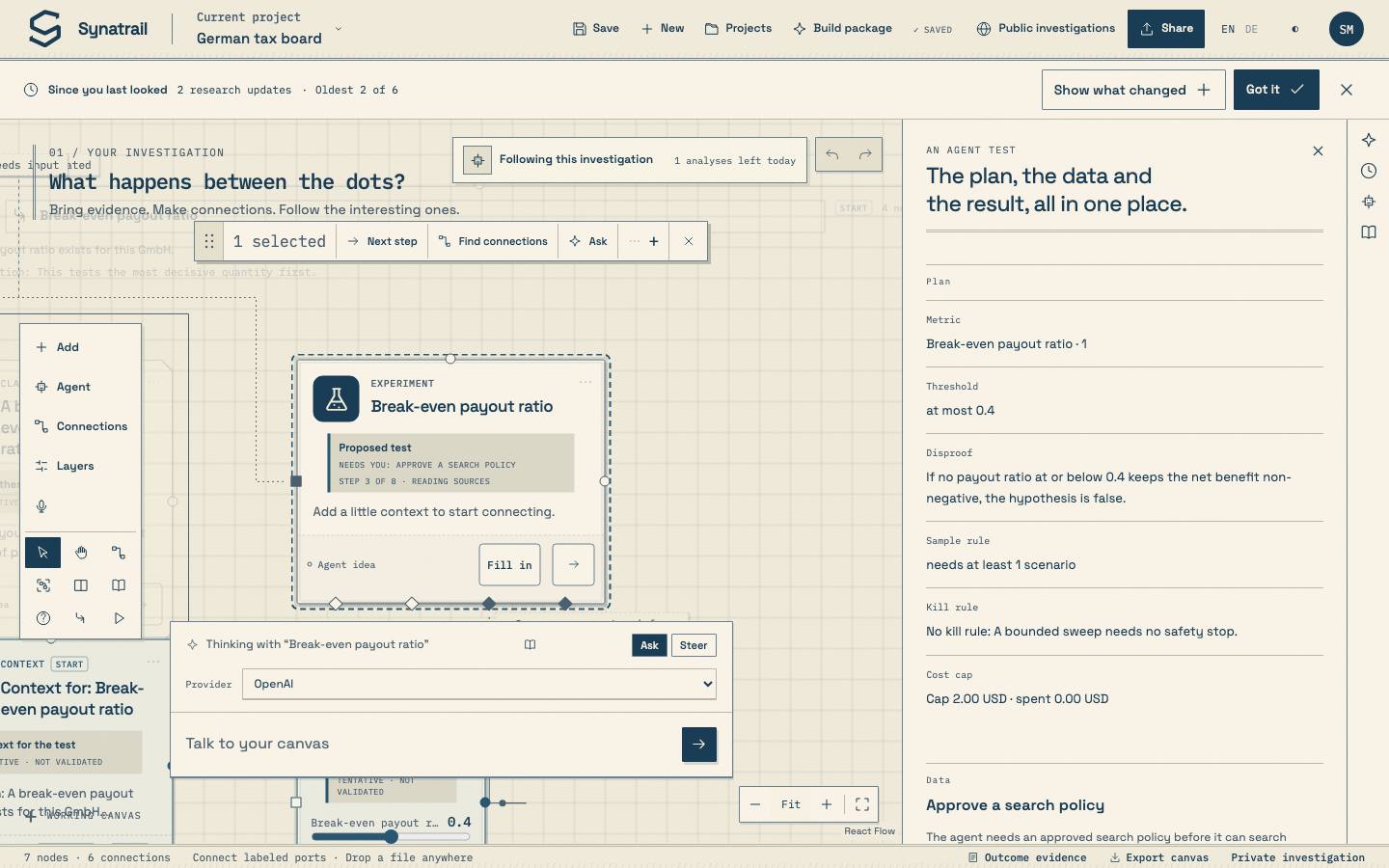
External research is off until you turn it on for this investigation. The rail shows the short, general terms that may be disclosed to public search. Review those terms and the search budget before saving the policy. Queries are composed from that approved policy; private notes and raw project text are not sent to public search. If a test needs web evidence and no policy is approved, its card says Needs you: Approve a search policy. You can approve one and let the test continue.
Use Discoveries to read a candidate, then Explore, Why or Ignore. Why shows the source trail and any relevant notes the agent consulted. Activity shows recent passes and costs; Decisions records what you chose. In the assistant dock, choose Steer and write what the agent should focus on next. Steering uses the connected model and its saved limits.
The agent can remember hypotheses, dead ends, discoveries and retrieved sources across your own projects. Its notebook entries remain live references; they provide background for a new pass rather than silently deciding what is true on this canvas.
The notebook is the investigation's memory: your notes, the agent's cited findings, saved answers, kept selections and experiment comparisons, each pointing back to the canvas it came from.
Open Notebook in the Agent rail, or choose it under More in the command bar. The drawer's overline reads COLLECT THE USEFUL BITS. Three filters: All notes, Agent findings and Yours.
Every entry is labelled Your note or Agent finding, with its kind, and carries a Return to canvas button for each card or edge it references. Agent findings offer Keep in my notes, which promotes them into your own notes so they survive a change of mandate.
Write your own with the field Something worth remembering… and Add a note. Other flows write here too: Keep in notebook from the selection toolbar and from answers, and Keep comparison in notebook from chapter 11.
Share notebook publishes the notebook alone. The canvas stays private. Chapter 13 explains the review step.
An experiment runs one of nine bounded numerical tools on your datasets and parameters. Inputs are pinned to exact versions when you run, results carry a receipt, and alternatives never overwrite the baseline they branched from.
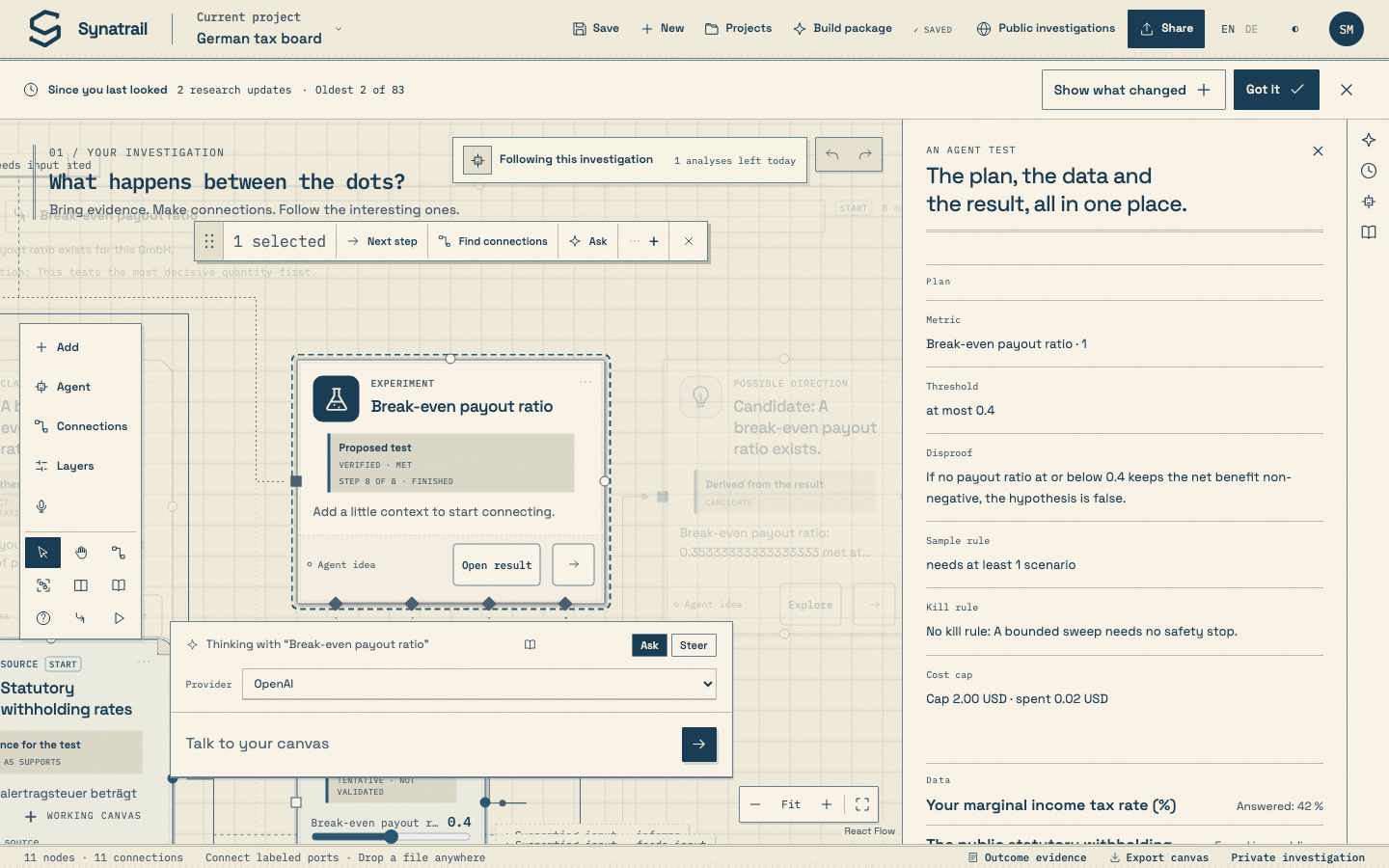
On a research direction, the agent proposes a test and compiles a plan with a metric, threshold, disproof condition, sample rule, cost cap and method. The test card shows its state and Step 1 of 8 through Step 8 of 8: compiling, choosing data, reading sources, wiring, running, presenting, deriving and finished. A refusal or failed compile names the reason. At Research level a prepared test can run within the saved limits; at Suggest level you choose Run; at Manual level you can make it your own test.
The agent binds an existing dataset, extracts a cited public table, or asks for a value only you know. It makes separate evidence, context, setting and data cards and wires them into the test's four named bottom ports. Public evidence quotes must match a stored page word for word; the card labels the agent's reading as supporting or challenging, never as proof. The test panel has Plan, Data, Wired, Context, Receipts, Result, Agent reading, Derived and Your verdict sections.
A verified result appears beside the test with a measured number, unit, source and limits. It connects back to the hypothesis with an evaluates relationship. The hypothesis shows Verdict: supported by computation, Verdict: weakened by computation or Verdict: inconclusive. The agent then derives a candidate, alternative claim or sharper test from the result. You still record your own verdict separately.
Every Experiment card can hold a test plan: what the test asserts, what observation would show it is wrong, and how it is carried out. Make testable on a relationship opens one, already pointing at that relationship and the revision it has right now, with Open the relationship to go back to it. Choose A test you carry out yourself and the card is a plan and nothing else — nothing is queued and no calculation runs. Choose A calculation on your evidence and the calculation appears below; it still waits for Run experiment, and it will not run until the plan is saved, so the result names the exact plan revision it answers.
Changing the claim, the falsifying observation, the method or the target saves a new revision, and the heading counts it: TEST PLAN · REVISION 2. Earlier results keep the revision they answered. Writing down different conditions is not a new revision. If you later delete or rewrite the relationship the plan points at, the plan survives and says so.
Once a manual plan is saved, Record what you observed appears under it. Write the date, what actually happened, the conditions as you carried them out, who did it and what the result cannot settle. Two questions are kept apart. Did the test run? is about the work: it ran and gave a clear observation, it ran but settled nothing, or it could not be carried out. Your reading of it is yours: not read yet, tentative, supports the claim, or refutes it — and a reading needs a reason.
The result is saved on its own Observation card, drawn to what it tested with an evaluates line, and written into your notebook, all in one save. Nothing is calculated and no receipt is invented. A result that refutes your claim still counts as a test you carried out, and it never changes the relationship's assessment on its own — you record that verdict on the relationship itself, with your reason. Saving twice never makes two cards. Correct this result saves the next revision of the same record and leaves the earlier entries in your notebook.
When the worker finishes, the result appears as its own card in the investigation, labelled Computed result or Simulation result. That label comes from what actually ran, not from what anyone wrote, so a plan can never look like a finished output and a simulation always says it is conditional on its assumptions. Open the card to inspect its receipt; nothing you type can create or change one.
Open the card and you can read the exact versions it was computed from: the output version, the software and method versions, each frozen dataset with its hash and the moment it was saved, the bound parameters and any random seed. From there, Open the test plan takes you to the exact plan revision it answers, and the plan's Open the relationship takes you to the claim itself. The card says whether the run started from that plan or was linked to it after the run, so the order of events is never blurred.
Connect to what it tested draws an evaluates line from the result to the card it tested. It is drawn unassessed on purpose: accepting a result never makes a relationship supported. A run that failed or was cancelled publishes no card at all, and an unrelated result answers nothing — the plan tells you how many results answer its falsifying test as it states it now.
Use Create an experiment in the add menu, Adjust on a parameter, Configure test on an experiment, Open result on a saved result, or Branch and compare from a selection. The panel is called Make the connection testable. Give it an Experiment title, choose a Calculation, and pick an Input dataset from the versioned datasets on this canvas: uploaded CSV and JSON files, and data connection samples. Without any, the panel says Drop a CSV on the canvas to make a versioned dataset available here.
| Calculation | Inputs | What you set |
|---|---|---|
| Profile a dataset | 1 dataset | Nothing. Returns row and column statistics. |
| Filter rows | 1 dataset | A column, an operator (equals, does not equal, is greater than, is at least, is less than, is at most, contains text, is one of, is missing) and a value. |
| Join datasets | 2 datasets | First join key, Second join key, Rows to retain (Matching rows or All rows from the first input), Trim key whitespace, Ignore key case. |
| Aggregate a measure | 1 dataset | Up to three Group by columns and up to eight measures, each a Measure (count, sum, mean, min, max, median, stddev) of a Measure column with an Output name. |
| Check or convert units | 1 dataset | A Column, a Target unit and whether to Convert compatible values. |
| Align time series | 2 datasets | Two timestamp columns, a Tolerance · milliseconds and a Direction (nearest, backward, forward). Use ISO dates or timestamps with a timezone. |
| Explore an association | 1 dataset | Two measures and a Method: Pearson · linear association or Spearman · rank association. Descriptive only, never causal. |
| Sweep a parameter | none | A Formula, an Output unit and variables, each with a unit and Values to compare · separated by commas. Up to 1,000 scenarios. |
| Simulate assumptions | none | A Formula, an Output unit, variables with Minimum, Most likely and Maximum, plus Draws, Random seed and an Outcome threshold. Independent triangular assumptions; percentiles describe scenarios, not forecasts. |
Every unit field offers the supported symbols: 1, %, m, km, cm, mm, s, ms, min, h, day, kg, g, mg, K, °C, A, mol, Hz, N, Pa, J, W, kW, kWh, EUR, USD, GBP and count. Symbols combine with * and / and integer powers, so EUR/h and kWh/day work. Formula tools state it under the form: Formula units are checked before execution. Incompatible units stop a run before it starts, and a parameter with the wrong unit cannot be bound.
Every scalar field has a second dropdown, Bind … to a parameter, with Typed value and every parameter card on the canvas; incompatible ones are marked. Connecting a parameter’s round output to an experiment’s Settings diamond, or dropping the parameter onto the experiment, opens Put this input to work. Choose the Calculation input and press Bind input, or Bind in an alternative to leave a finished result intact and start a comparison branch instead. The Bound parameter values disclosure lists each binding with the note canvas value pinned at run.
Press Run experiment. The run passes through queued, running and completed, and a Computed result card appears in the investigation. In Saved experiments each result shows metric tiles, a chart, a table of up to twelve rows, and for simulations the disclosure Which assumptions move the result?
The Inputs & calculation receipt disclosure is the provenance: each input dataset with its version timestamp and content hash, each step with its method version and duration, the software version, the seed, and the Output version. Locate source jumps to the dataset card. Rerunning with unchanged inputs reuses the output and says so. Export result downloads everything.
Compare a change opens What changes? Choose a Saved baseline, name the alternative (the placeholder suggests What if the demand increases?) and press Branch & change assumptions. The note explains what happens: The alternative starts with the baseline's pinned datasets, parameters and calculation steps. Your canvases and baseline result stay intact. Change what you want in the branch and press Run alternative.
Then, under Compare saved outcomes, pick the Alternative result and press Compare changes. The verdict is one line, The output changed or The output is unchanged, followed by tiles for Inputs, Parameters, Recomputed steps and Unaffected steps, and a table of Measure, Baseline, Alternative, Change. Keep comparison in notebook records it. Preserved branches lists every branch with an Export branch button.
A calculation may use 4 inputs, 16 steps, 5,000 rows, 100 columns, 24 parameters and 1,000 sweep scenarios, and must finish within 8 seconds and 96 MB. These nine tools do not execute generated code. Agent-run tests follow the saved automation level, budget and the compiled plan's own cost cap.
Come back after a week and a banner above the canvas tells you what happened, why research stopped and what is still open. You do not have to read the whole log.
Only saved events: a source that arrived or was read, a correction, a finding or relationship the agent proposed, an answer, a calculation that finished and which plan revision it answers, your decisions and notes, and how a research run ended and why. Nothing is asked of a model to write it. Every line names the thing it came from and takes you there. If that card has since been deleted, the line still reads and takes you to Activity instead, which keeps everything.
Got it marks what you just read as seen. That memory lives in this browser only — sign in somewhere else and the summary starts fresh. If more happened than fits on one page, the banner says so (Oldest 40 of 55) and Got it marks only the page you were shown; the rest waits for you next. Nothing marks itself seen on its own: leave the tab open in the background all week and everything that arrived is still there when you look.
Underneath, Still open lists what nobody has settled: what a stopped run said it could not answer, the evidence a finding says it is missing, and any test plan with no result yet. Answer drops the question into the ask box as a draft. Use as next goal puts it into the research mandate. Neither sends anything or spends anything — you still choose the model, the scope and the budget, and press Start investigation yourself.
The canvas saves itself. When it cannot, it keeps your edits in the browser and tells you. When two versions disagree, it shows both and lets you decide field by field.
| State | Meaning | What to do |
|---|---|---|
| ✓ Saved | Every canvas change is on the server. | Nothing. |
| ○ Saving | A save is in flight. | Wait a moment. |
| Unsaved | Project name or question edited but not yet saved. | Save project or ⌘ / Ctrl + S. |
| Offline | The server is unreachable. Edits wait in this browser and retry every 8 seconds and when the connection returns. | Keep working, or Export pending edits. |
| Conflict | Another saved revision changed the same fields. | Review changes. |
| Needs attention | The server rejected a save. | Open the conflict panel and Retry save or export. |
Closing the tab with unsaved work triggers the browser's own leave-page warning. If the browser refuses to keep an offline copy, a bar warns This browser could not keep an offline copy. Export your changes before closing. with an Export pending changes button.
A conflict shows a banner: Edits conflict with another saved revision. and 2 fields need a decision. Both versions remain available. Press Review changes to open Keep your work. It lists each disputed field, marks entities that were removed in one version, and shows Your pending version and Current saved version side by side. Choose Keep my conflicting edits or Use the saved version. Everything that did not conflict is merged either way.
Undo works across all of this. It steps back through your own edits while preserving updates that arrived from a source reader, the computation worker or the agent in the meantime. The help panel is explicit about the boundary: Completed research actions and provider charges remain in history.
Nothing becomes public by itself. When you publish, you review the exact copy first. Members can read it, vote, discuss, make their own working copy and send you changes. You accept or decline, and decide when the public copy updates.
Press Share in the header, or Share notebook inside the notebook. The panel is called Share your investigation. and starts with your status: Your investigation is private. or A public copy is available.
Press Review public copy. The review is the exact copy, marked REVIEW BEFORE PUBLISHING, with every card, relationship and included note, and one disclosure: This exact copy will be visible to signed-in community members. Source text shown below is included. Original files, connection settings, credentials, and your Agent canvas stay private. Press Publish reviewed copy. Later edits stay private until you return here and press Publish this update.
Make private asks for confirmation, Make this investigation private?, and warns that working copies others have already made remain theirs. Withdrawing blocks new reads, votes, comments and submissions.
Public investigations in the header opens the board, titled Public investigations. Filters: All investigations, Yours, Contributed to. A search field, Find an investigation…, and a sort, Most upvoted or Newest. Each row shows the vote control, the author, the title and introduction, topics, counts of comments, contributions, nodes and notes, the author's LOOKING FOR line, and Open investigation or Open notebook. Every member has one vote per publication, up or down, changeable any time.
Four tabs: Canvas, a read-only copy you can pan and zoom, with every card and relationship listed below it; Notebook; Discussion, where Your comment and Add to the discussion start a thread; and Contributions. Copy link copies an address that returns to this publication after sign-in. On your own publication the buttons read Open your original and Manage publication.
On someone else's publication, press Make a working copy. You get a private investigation of your own with every canvas tool, and a banner: Your working copy of Mara's investigation, with Discussion and Submit changes. The header's Share button now reads Contribute. Add a source, a relationship, a note or a counterexample, then press Submit changes.
The panel Start with a useful addition. shows only the actual differences, counted as new nodes, edited nodes, removed nodes, new relationships, edited relationships, removed relationships, new notes and changed question. Explain them in What does this addition help explain? and press Submit reviewed changes.
As the author, open your publication's Contributions tab. Each submission has Review submitted changes, a field-by-field Before and Proposed view, and two buttons: Accept contribution and Decline. Acceptance merges into your private original and preserves your unrelated edits and private source bindings; conflicting edits are flagged for review. The toast reminds you of the last step: Contribution accepted into your original. Publish an update to share it.
An earlier community panel, Think together., remains available with four tabs. Shared threads holds evidence snapshots published from a selection, with Copy to canvas, Report and, for your own, Withdraw. People lists members who opted into a profile, with Request a connection where they accept it. Connections lists requests to Accept, Decline or Close connection. Share selection, reached from the selection toolbar, publishes a reviewed snapshot of selected cards, optionally with source excerpts, after Review selected material. Administrators see a Reports tab to withdraw reported contributions.
An investigation can end as something an agent can build instead of a document. You mark what belongs, the agent checks what you left out, researches a pitch with public sources, and only if the pitch holds up do you pay for the full build package: modules, waves, PRDs, architecture, parts, tests. Everything lands in the idea library.
Press Build package in the header, open Current project and press Create a build package under FROM INVESTIGATION TO BUILD, or select the exact cards you want and choose Prepare a draft package from the selection menu. The selection route keeps those cards pre-marked. The panel is titled From investigation to build. and explains the sequence: mark, review, research the pitch, then build.
Three lists with All and None buttons: CARDS · 8/8, NOTEBOOK · 3/3 and EARLIER ANSWERS · 2/2. Cards you had selected on My canvas are pre-marked; excluded cards, pending proposals and group frames are not offered. Earlier answers show the question they answered. At most 30 cards may be marked; the form says Mark at most 30 cards. Group or unmark some before composing. Then choose What kind of product: Let the evidence decide, Software, Hardware or Hardware and software; write Steering (optional), whose placeholder suggests Who it is for, constraints, what must be left out, preferred stack or parts…; and pick the Answering model. Three buttons close the form: Plan the pitch research, Check the scope with the agent and Skip the pitch, build the package. Without a connected model, any of them takes you to Model access.
One bounded turn over the whole investigation. The review names the unmarked cards, notebook entries and answers the package would need, as RECOMMENDED · 2 UNMARKED ITEMS · 1 ESSENTIAL, each with a reason and a checkbox, and lists GAPS THE INVESTIGATION DOES NOT COVER with the warning Gaps become open questions in the package unless you add evidence first. Then: Add 2 and plan the research, Plan with my marks only, Skip the pitch, build the package or Back to marking.
Planning is one more bounded turn that proposes up to eight generalized public search queries, each with what it verifies. The review says These generalized queries go to public search. Edit or drop any that could reveal something private, then approve. Edit any line, untick any, or Add a query. Set the limits: Searches (1 to 8), Sources read (1 to 12), Minutes (3 to 30) and, for API providers, Max USD. Press Start the research · 5 queries. The panel then reads Researching the pitch with public sources… with live counts of searches, sources read, turns and USD, and a log of every SEARCH and READ. You can close it; the pitch appears in the idea library when it is ready.
| Block | What it shows |
|---|---|
| Verdict | Pursue, Reshape first or Reject, with CONFIDENCE as a percentage, and an EVIDENCE line such as 5 of 7 claims cite a read source · 4 sources read · 5 searches. |
| Four meters | Desirability, Feasibility, Viability, Evidence, each 0 to 100. |
| Value proposition | FOR, PROBLEM, PROMISE, EDGE. |
| Market fit · Market size | Segments with a five-dot fit, WHY NOW, and TAM, SAM, SOM bars with a low, medium or high confidence chip and their basis. |
| Positioning · Competition · Whitespace | A two-axis map with This idea among named competitors, each competitor's approach with a + strength and a − weakness, and the open opportunities. |
| Reasons to reject · Concerns | Each reason with a severity chip (fatal, serious, minor) and a mitigation; concerns by area. |
| Assumptions · Unknowns · Could not verify | What the pitch rests on, what it could not settle, and claims for which no read source was found. |
| Sources read | Every public source the agent actually read, numbered; citations in the pitch link to them. A claim without one is marked unverified. |
Under the pitch: Build the full package, Revise the pitch, which returns to marking, Download, which saves the pitch as Markdown, and Remove. A pitch cannot be sent to a build tool; only a package can.
Composing the package is one large bounded turn. The panel reads Composing the build package from your marked evidence… and warns that it can take a few minutes. When it is ready the panel is titled A product, defined. Its head states HYBRID · 3 modules · 7 stories · 2 parts · 1 drawings, the product name and one line. Four tabs follow.
Every list in a package has a hard bound, so it is a definition, never an open-ended document: at most twelve modules, six waves, eight stories per module, thirty parts, twelve physical parts, eight risks, eight open questions.
A small sensor and dashboard that tells café owners when the terrace gets too hot.
Who. Owners of small cafés with outdoor seating.
Pain. Terraces empty out in heat and nobody knows when.
Measure the terrace microclimate and alert before customers leave.
VS Code downloads a folder with PACKAGE.md, AGENTS.md, CLAUDE.md, one PRD per module and cad/ with the generated source and drawings. The hosted tools receive the build prompt; paste it into their new-project box.
Under SEND TO A BUILD TOOL: VS Code downloads the archive; unzip it, open the folder and start your coding agent, and AGENTS.md tells it where to begin. Lovable, Base44 and Replit Agent copy the build prompt to your clipboard and open their new-project page; a disclosure Build prompt for Lovable · copied keeps the prompt in view. The prompt embeds the spec up to 24,000 characters and points to the archive for the rest. Download archive and Remove sit at the bottom.
| File | Contents |
|---|---|
| PACKAGE.md | The complete definition plus the frozen recorded basis: problem space, solution idea, concept, data, architecture, modules, build waves, PRDs, bill of materials, geometry, design system, agent concurrency, controls and tests, dependencies, risks, open questions, evidence, selected concepts and materials, next test and retained human decision notes. |
| AGENTS.md · CLAUDE.md | Instructions for the coding agent: order of work by wave, concurrency rules, definition of done, and where the CAD source lives. |
| prd/<module>.md | One PRD per module with its stories and acceptance criteria. |
| BOM.csv | Parts, quantities, specifications, estimated cost and supplier hints, for hardware and hybrid products. |
| package.json.txt | The same definition and separately frozen recorded basis as structured data, with the run and receipt they came from. |
| cad/ | A README of checks and one folder per physical part with source and exports, once drawings exist. Chapter 15. |
Press Projects and choose Idea library in the sidebar. Every pitch and package you composed is a card: PITCH with its verdict and confidence, or the package kind with 3 modules · 7 stories · 2 parts. Each offers Open, which switches to the package's investigation, Download, a Send to… selector for packages, and Remove. Before anything is composed the page reads No pitches or packages yet.
The scope check and the query plan are one bounded turn each. Pitch research runs several turns within the searches, reads, minutes and dollars you approve. The package is one large turn with a 16,000-token answer. Your research allowance applies to all of them, and only one pitch and one package can be composing per investigation at a time. A researched pitch and a build release are commissioned jobs with a credit price shown before you start; the model turns still bill your own provider.
A hardware or hybrid package names its physical parts. Each part becomes one bounded model turn that writes parametric CAD source, and one job on an isolated runner that builds the source into STEP, STL, GLB, DXF and dimensioned drawings, then measures the result against what the package promised. A part that misses is revised once on its own.
Section 10 of the spec, Geometry, lists up to twelve parts, each with an id, a kind (mechanical or electronic), an envelope in millimetres, a material, a mass, the module and bill-of-materials line it belongs to, and a preferred tool: build123d for machined, moulded and printed parts, openscad for simple primitives, kicad for a schematic. Software packages have no parts and no Drawings tab.
The tab opens with a line naming what the runner can do, RUNNER · BUILD123D · OPENSCAD, and one entry per part: its name, MECHANICAL · BUILD123D, its stated 100 × 60 × 25 mm · PLA · 40 g · module firmware and description, and a status chip. Press Generate drawings. The chip moves through Writing the source…, Queued for the runner and Building on the runner to Drawings ready when every check passes, or Checks failed or Failed with the reason. Generation needs a connected model and the package's own investigation open; otherwise the tab says Open this package's investigation to generate geometry. A deployment without a runner says No geometry runner is connected to this deployment. and keeps the button disabled.
Four views, FRONT, TOP, SIDE and ISO, each with a title block reading 1:1 · mm · third angle and overall dimension lines; hidden edges are dashed. A table of checks with PASS or FAIL in the last column. A line such as build123d · attempt 1 · 0.11.1 · 5.1 s · about 74.4 g. The files: source.py, source.scad or source.kicad_sch, part.step, part.stl, part.glb, top.dxf and the four SVGs, each a download with its size. Two disclosures, Engineer’s notes and Assumptions, hold what the model said about its own work.
| Check | Passes when |
|---|---|
| Solid geometry | The volume is above zero and there is at least one solid. |
| Watertight mesh | The exported mesh has no open edges. Shown only when it fails. |
| Envelope matches stated dimensions | The measured bounding box matches the stated envelope within 5 percent and at least 0.5 mm per axis. The axes are sorted first, so orientation does not matter. |
| Mass from volume and material | Volume times the material's density lands within 20 percent of the stated mass. The density comes from the model's statement or from a table of common materials. |
| ERC clean · Components placed | A schematic has zero electrical rule errors and at least one placed component. Electronic parts need KiCad on the runner. |
100 × 60 × 25 mm · PLA · 40 g · module firmware
| Check | Expected | Measured | |
|---|---|---|---|
| Solid geometry | volume above zero, at least one solid | 60000 mm³, 1 solid | PASS |
| Envelope matches stated dimensions | 25 × 60 × 100 mm (±5 %, at least ±0.5 mm) | 25 × 60 × 80 mm | FAIL |
| Mass from volume and material | 40 g (±20 %) | 74.4 g at 1.24 g/cm³ | FAIL |
source.py part.step 77 kB part.stl 223 kB part.glb 147 kB top.dxf 17 kB front.svg top.svg side.svg iso.svg
When a check fails, or the source does not build at all, the harness starts exactly one revision turn by itself. The entry reads A revision turn is fixing the failed checks…, and the next turn sees the previous source, the failed checks, the error and the runner's log. The second version appears above the first, and the entry counts 2 versions. After that the button reads Revise with the failures for a part that still fails, up to a third attempt, or Regenerate for one that passed.
Once a part has completed geometry, the package archive gains cad/README.md, with each part's tool, verdict, measured envelope and mass and every check, and cad/<part>/ with the source and exports of the latest completed version, preferring one that passed. AGENTS.md gains a CAD section telling the build agent to work from that source instead of redrawing, and the build prompt for hosted tools mentions the folder.
Twelve parts per package. Source of at most 60 kB; a build123d file may import only build123d and math and may not read files, start processes or reach the network. The runner gives a part 170 seconds and returns at most 25 MB of files; it has no internet route and never sees your investigation, only the source. Two runner attempts per job, three attempts per part. The runner on synatrail.com has build123d and OpenSCAD; electronic parts wait for a runner with KiCad.
Each drawing run is one model turn on your provider and one job on the geometry runner. The automatic revision after a failed check belongs to the same job. A drawing job has a credit price shown before you start, and an automatic revision never costs a second job.
Your avatar opens the panel Your workspace. Besides Model access and Research context, it holds your profile, your account and, for administrators, the member list.
Display name, Bio, Skills, Interests and Your current question describe you to other members. Two checkboxes decide visibility: Show my profile in People and Accept connection requests. Both are off until you turn them on. Save profile stores them. Your avatar shows the initials of your display name.
Export workspace downloads everything you own as JSON. Below it, Current password, New password and Change password & sign out. Sign out is refused while edits are pending: Resolve or export your pending edits before signing out.
The Credits tab shows your available balance, the packs you can buy, the cost of each commissioned job before you start it, and a history of every reservation, charge and refund. With BYOM, your model provider bills through your own key or plan; Synatrail-managed model usage is charged separately in platform credits. The pricing page explains what is never metered and what credits buy.
The header's Change color theme button switches between the sand-paper light theme and the deep blue dark theme. The choice is remembered in this browser, and the sign-in page and the project pages follow it.
Administrators see one more tab. Invite an email address (optional) and Create invitation produce an invitation code, and the member list shows each email, name, organisation, role and status with Suspend and Activate. Registration mode is set by the operator. On synatrail.com it is open: the sign-up form admits and signs in anyone who completes it, and invitation codes are only needed on closed deployments. The details you gave at sign-up, your consent and its version are kept with your account, as the Terms of Use and Privacy Notice describe.
| Address | Opens |
|---|---|
| …/app/#canvas | The current project's canvas. |
| …/app/#community | The public board. Add / and a publication's identifier to open one publication. |
| …/app/#setup | Settings, on the Profile tab. #setup/models opens Model access; #setup/account opens Account. |
| …/app/#people | The People tab of the community panel. |
| …/app/#commons | The shared threads panel. |
| …/app/terms | The Terms of Use and Privacy Notice, also linked from the sign-in page. |
| Area | Limit |
|---|---|
| Uploads | 10 files at a time, 25 MB each. Originals are always kept. |
| PDF reading | 250 native text pages, 8 OCR pages in English, 45 seconds. |
| Images | Static PNG or JPEG, 4 MB, 4,096 pixels per side, 8 megapixels. Reading needs a vision-capable model. |
| Public reads | 2 MB and 25 seconds per page. |
| Datasets | 2 MB, 5,000 rows, 50 columns per version. Spreadsheets: 20 sheets, 5,000 rows each. |
| Data connections | 1 to 96 reads per day, 1 to 25 calls per read, 2 MB and 5,000 rows per read. |
| Computation | 4 inputs, 16 steps, 5,000 rows, 100 columns, 24 parameters, 1,000 scenarios, 8 seconds, 96 MB. |
| Research allowance | 0.10 to 100 dollars per connection, 10 by default. A mandate: up to 100 dollars, 60 minutes, 30 turns, 12 searches, 20 sources. |
| Build packages | 30 marked cards, 80 notebook entries, 20 answers. Scope check, query plan and package are one turn each; the package answer is 16,000 tokens within 6 minutes. Pitch research: 8 queries, 8 searches, 12 sources, 30 minutes. |
| Geometry | 12 parts per package, 60 kB of source, 170 seconds and 25 MB of files per build, 2 runner attempts per job, 3 attempts per part. |
| Text fields | Titles 200 characters. Card bodies and notes 18,000. Mandate goal 6,000. Rationale 2,000. Package steering 2,000. |
One last thing the harness says about itself, and this documentation repeats: implemented features are not claims of verified scientific findings. The example in these pages is a way to learn the tools, not a result.